> ## Documentation Index
> Fetch the complete documentation index at: https://developers.projectcor.com/llms.txt
> Use this file to discover all available pages before exploring further.
# Development
> Set up your development environment and build integrations with the COR API
This guide helps you configure your development environment, obtain API credentials, and implement best practices for building robust integrations with COR.
## Get your API credentials
Before you can make API requests, you need to obtain your API Key and Client Secret from the COR dashboard.
Log in to your COR account and navigate to **Settings** > **Integrations** > **API**.
Click **Generate API Key** to create a new API Key and Client Secret pair.
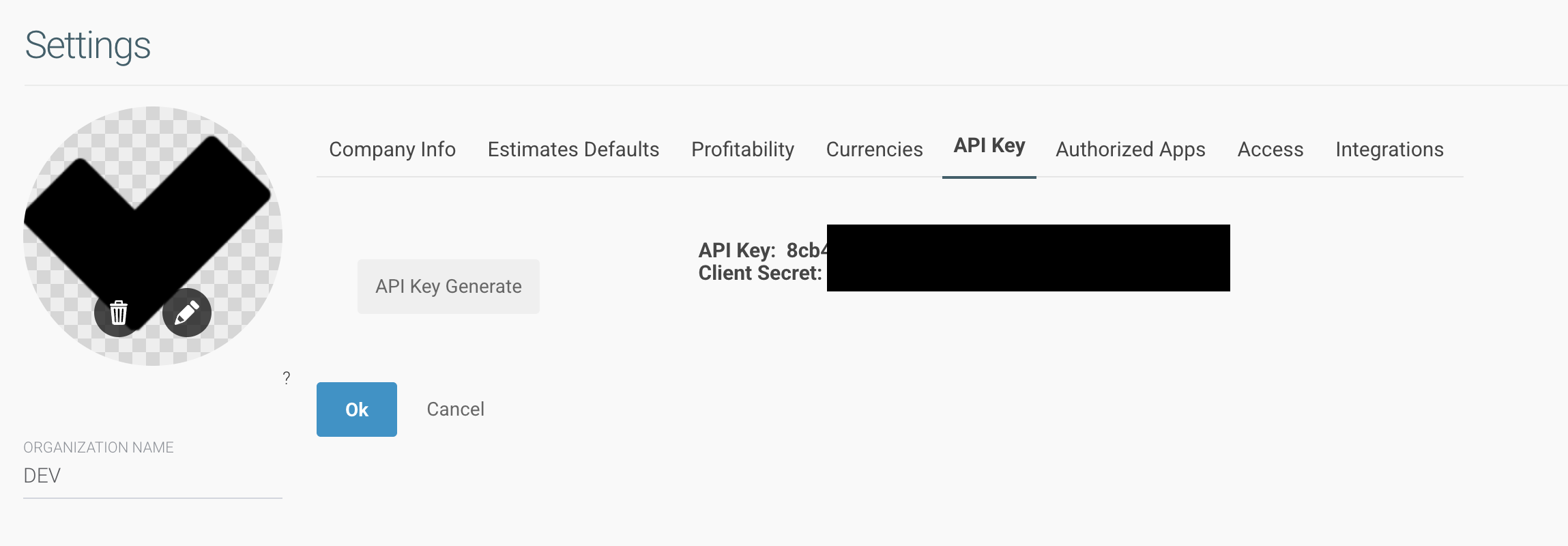 Store your Client Secret securely. It is only displayed once during creation. If you lose it, you must generate new credentials.
For Client Credentials authentication, encode your credentials in Base64:
```bash theme={null}
echo -n "YOUR_API_KEY:YOUR_CLIENT_SECRET" | base64
```
This produces a string like `WU9VUl9BUElfS0VZOllPVVJfQ0xJRU5UX1NFQ1JFVA==` that you use in the Authorization header.
## API environments
COR provides three API services that work together to manage your projects, resources, and external integrations.
**Base URL:** `https://api.projectcor.com/v1`
Main API for projects, tasks, clients, users, time tracking, and transactions.
**Base URL:** `https://planner.svc.v2.projectcor.com`
Dedicated service for managing user capacity and project allocations.
**Base URL:** `https://integrations.projectcor.com/`
Service for external system integrations with external ID mapping and bidirectional sync.
All three APIs share the same authentication. Use your access token from the main COR API to authenticate requests to the Resource Allocation API and Integrations API.
## Development tools
### Import the OpenAPI specification
Import the COR OpenAPI specification into your preferred API client for easy testing:
1. Open Postman and click **Import**
2. Select **Link** and paste the OpenAPI URL:
```
https://developers.projectcor.com/api-reference/openapi.json
```
3. Click **Import** to generate a complete collection with all endpoints
1. Go to **Application** > **Preferences** > **Data**
2. Click **Import Data** > **From URL**
3. Enter the OpenAPI URL:
```
https://developers.projectcor.com/api-reference/openapi.json
```
Install the [REST Client](https://marketplace.visualstudio.com/items?itemName=humao.rest-client) extension and create `.http` files:
```http theme={null}
@baseUrl = https://api.projectcor.com/v1
@token = YOUR_ACCESS_TOKEN
### Get authenticated user
GET {{baseUrl}}/me
Authorization: Bearer {{token}}
### Get projects
GET {{baseUrl}}/projects
Authorization: Bearer {{token}}
```
### Recommended libraries
Use these HTTP libraries for your integrations:
```python Python theme={null}
# Install: pip install requests
import requests
headers = {
'Authorization': f'Bearer {access_token}',
'Content-Type': 'application/json'
}
# All list endpoints return paginated responses
response = requests.get(
'https://api.projectcor.com/v1/projects',
params={'page': 1},
headers=headers
)
result = response.json()
# Access paginated data
print(f"Total: {result['total']}, Page: {result['page']}/{result['lastPage']}")
for project in result['data']:
print(project['name'])
```
```javascript JavaScript (Node.js) theme={null}
// Install: npm install axios
const axios = require('axios');
const client = axios.create({
baseURL: 'https://api.projectcor.com/v1',
headers: {
'Authorization': `Bearer ${accessToken}`,
'Content-Type': 'application/json'
}
});
// All list endpoints return paginated responses
const response = await client.get('/projects', { params: { page: 1 } });
const { total, page, lastPage, data } = response.data;
console.log(`Total: ${total}, Page: ${page}/${lastPage}`);
data.forEach(project => console.log(project.name));
```
```php PHP theme={null}
// Install: composer require guzzlehttp/guzzle
use GuzzleHttp\Client;
$client = new Client([
'base_uri' => 'https://api.projectcor.com/v1/',
'headers' => [
'Authorization' => 'Bearer ' . $accessToken,
'Content-Type' => 'application/json'
]
]);
// All list endpoints return paginated responses
$response = $client->get('projects', ['query' => ['page' => 1]]);
$result = json_decode($response->getBody(), true);
echo "Total: {$result['total']}, Page: {$result['page']}/{$result['lastPage']}\n";
foreach ($result['data'] as $project) {
echo $project['name'] . "\n";
}
```
```go Go theme={null}
package main
import (
"encoding/json"
"net/http"
)
type PaginatedResponse struct {
Total string `json:"total"`
PerPage int `json:"perPage"`
Page int `json:"page"`
LastPage int `json:"lastPage"`
Data []interface{} `json:"data"`
}
func main() {
client := &http.Client{}
// All list endpoints return paginated responses
req, _ := http.NewRequest("GET",
"https://api.projectcor.com/v1/projects?page=1", nil)
req.Header.Set("Authorization", "Bearer "+accessToken)
req.Header.Set("Content-Type", "application/json")
resp, _ := client.Do(req)
defer resp.Body.Close()
var result PaginatedResponse
json.NewDecoder(resp.Body).Decode(&result)
}
```
## Best practices
### Secure token management
Never hardcode API credentials or tokens in your source code. Use environment variables or a secure secrets manager.
```bash theme={null}
# Set environment variables
export COR_API_KEY="your_api_key"
export COR_CLIENT_SECRET="your_client_secret"
```
```python theme={null}
import os
api_key = os.environ.get('COR_API_KEY')
client_secret = os.environ.get('COR_CLIENT_SECRET')
```
### Implement automatic token refresh
Access tokens expire after a period of time. Implement automatic refresh to maintain uninterrupted access:
```javascript theme={null}
class CORClient {
constructor(apiKey, clientSecret) {
this.apiKey = apiKey;
this.clientSecret = clientSecret;
this.accessToken = null;
this.refreshToken = null;
this.tokenExpiry = null;
}
async ensureValidToken() {
if (!this.accessToken || Date.now() >= this.tokenExpiry) {
await this.refreshAccessToken();
}
}
async refreshAccessToken() {
if (this.refreshToken) {
const response = await fetch(
'https://api.projectcor.com/v1/oauth/refreshtoken',
{
method: 'POST',
headers: { 'Content-Type': 'application/x-www-form-urlencoded' },
body: `refresh_token=${this.refreshToken}`
}
);
const data = await response.json();
this.accessToken = data.access_token;
this.refreshToken = data.refresh_token;
this.tokenExpiry = Date.now() + (data.expires_in * 1000);
} else {
await this.authenticate();
}
}
async request(endpoint, options = {}) {
await this.ensureValidToken();
return fetch(`https://api.projectcor.com/v1${endpoint}`, {
...options,
headers: {
'Authorization': `Bearer ${this.accessToken}`,
'Content-Type': 'application/json',
...options.headers
}
});
}
}
```
### Handle pagination
All list endpoints return **paginated responses** by default with the following structure:
```json theme={null}
{
"total": "100",
"perPage": 20,
"page": 1,
"lastPage": 5,
"data": [...]
}
```
Use the `page` and `perPage` parameters to navigate through results:
```python Python theme={null}
def get_all_projects(access_token):
"""Fetch all projects across all pages."""
all_projects = []
page = 1
while True:
response = requests.get(
'https://api.projectcor.com/v1/projects',
params={'page': page, 'perPage': 50},
headers={'Authorization': f'Bearer {access_token}'}
)
result = response.json()
# Add projects from current page
all_projects.extend(result['data'])
# Check if we've reached the last page
if page >= result['lastPage']:
break
page += 1
return all_projects
```
```javascript JavaScript theme={null}
async function getAllProjects(accessToken) {
const allProjects = [];
let page = 1;
let lastPage = 1;
do {
const response = await fetch(
`https://api.projectcor.com/v1/projects?page=${page}&perPage=50`,
{ headers: { 'Authorization': `Bearer ${accessToken}` } }
);
const result = await response.json();
allProjects.push(...result.data);
lastPage = result.lastPage;
page++;
} while (page <= lastPage);
return allProjects;
}
```
By default, list endpoints return 20 items per page. You can increase this up to 50 with the `perPage` parameter to reduce the number of requests. Set `page=false` to disable pagination entirely (use with caution on large datasets).
## Error handling
### HTTP status codes
The COR API uses standard HTTP status codes:
| Code | Description | Action |
| ----- | -------------------- | ----------------------------------- |
| `200` | Success | Process the response |
| `204` | Success (No Content) | Request succeeded, no body returned |
| `400` | Bad Request | Check request parameters and body |
| `401` | Unauthorized | Refresh or re-obtain access token |
| `404` | Not Found | Verify the resource ID exists |
| `429` | Too Many Requests | Implement backoff and retry |
| `500` | Server Error | Retry with exponential backoff |
### Implement retry logic
Handle transient errors with exponential backoff:
```python theme={null}
import time
import requests
def request_with_retry(url, headers, max_retries=3):
for attempt in range(max_retries):
response = requests.get(url, headers=headers)
if response.status_code == 200:
return response.json()
if response.status_code in [429, 500, 502, 503, 504]:
wait_time = (2 ** attempt) + 1 # 1s, 3s, 5s
print(f"Retry {attempt + 1}/{max_retries} after {wait_time}s")
time.sleep(wait_time)
continue
# Non-retryable error
response.raise_for_status()
raise Exception(f"Max retries exceeded for {url}")
```
## Troubleshooting
**Causes:**
* Access token has expired
* Token was not included in the request
* Token format is incorrect
**Solutions:**
1. Verify the token is included: `Authorization: Bearer YOUR_TOKEN`
2. Refresh the token using the `/oauth/refreshtoken` endpoint
3. Re-authenticate to obtain a new token pair
**Causes:**
* Missing required fields in the request body
* Invalid data types or formats
* Malformed JSON
**Solutions:**
1. Check the API reference for required parameters
2. Validate JSON syntax before sending
3. Ensure dates are in the correct format (`YYYY-MM-DD`)
**Causes:**
* User lacks permission for the requested action
* API key scope is limited
**Solutions:**
1. Verify your user has the required permissions in COR
2. Contact your COR administrator to adjust permissions
**Causes:**
* High API traffic
* Scheduled maintenance
**Solutions:**
1. Wait 5 minutes and retry
2. Implement exponential backoff in your integration
3. Check [COR Status](https://cor.zendesk.com/) for known issues
## Next steps
Make your first API call and authenticate with COR.
Explore all available endpoints and parameters.
Manage user capacity and project assignments.
Use AI-powered tools to accelerate your integration development.
**Need help?** Contact our support team at [help@projectcor.com](mailto:help@projectcor.com) or visit [COR Support](https://cor.zendesk.com/).
Store your Client Secret securely. It is only displayed once during creation. If you lose it, you must generate new credentials.
For Client Credentials authentication, encode your credentials in Base64:
```bash theme={null}
echo -n "YOUR_API_KEY:YOUR_CLIENT_SECRET" | base64
```
This produces a string like `WU9VUl9BUElfS0VZOllPVVJfQ0xJRU5UX1NFQ1JFVA==` that you use in the Authorization header.
## API environments
COR provides three API services that work together to manage your projects, resources, and external integrations.
**Base URL:** `https://api.projectcor.com/v1`
Main API for projects, tasks, clients, users, time tracking, and transactions.
**Base URL:** `https://planner.svc.v2.projectcor.com`
Dedicated service for managing user capacity and project allocations.
**Base URL:** `https://integrations.projectcor.com/`
Service for external system integrations with external ID mapping and bidirectional sync.
All three APIs share the same authentication. Use your access token from the main COR API to authenticate requests to the Resource Allocation API and Integrations API.
## Development tools
### Import the OpenAPI specification
Import the COR OpenAPI specification into your preferred API client for easy testing:
1. Open Postman and click **Import**
2. Select **Link** and paste the OpenAPI URL:
```
https://developers.projectcor.com/api-reference/openapi.json
```
3. Click **Import** to generate a complete collection with all endpoints
1. Go to **Application** > **Preferences** > **Data**
2. Click **Import Data** > **From URL**
3. Enter the OpenAPI URL:
```
https://developers.projectcor.com/api-reference/openapi.json
```
Install the [REST Client](https://marketplace.visualstudio.com/items?itemName=humao.rest-client) extension and create `.http` files:
```http theme={null}
@baseUrl = https://api.projectcor.com/v1
@token = YOUR_ACCESS_TOKEN
### Get authenticated user
GET {{baseUrl}}/me
Authorization: Bearer {{token}}
### Get projects
GET {{baseUrl}}/projects
Authorization: Bearer {{token}}
```
### Recommended libraries
Use these HTTP libraries for your integrations:
```python Python theme={null}
# Install: pip install requests
import requests
headers = {
'Authorization': f'Bearer {access_token}',
'Content-Type': 'application/json'
}
# All list endpoints return paginated responses
response = requests.get(
'https://api.projectcor.com/v1/projects',
params={'page': 1},
headers=headers
)
result = response.json()
# Access paginated data
print(f"Total: {result['total']}, Page: {result['page']}/{result['lastPage']}")
for project in result['data']:
print(project['name'])
```
```javascript JavaScript (Node.js) theme={null}
// Install: npm install axios
const axios = require('axios');
const client = axios.create({
baseURL: 'https://api.projectcor.com/v1',
headers: {
'Authorization': `Bearer ${accessToken}`,
'Content-Type': 'application/json'
}
});
// All list endpoints return paginated responses
const response = await client.get('/projects', { params: { page: 1 } });
const { total, page, lastPage, data } = response.data;
console.log(`Total: ${total}, Page: ${page}/${lastPage}`);
data.forEach(project => console.log(project.name));
```
```php PHP theme={null}
// Install: composer require guzzlehttp/guzzle
use GuzzleHttp\Client;
$client = new Client([
'base_uri' => 'https://api.projectcor.com/v1/',
'headers' => [
'Authorization' => 'Bearer ' . $accessToken,
'Content-Type' => 'application/json'
]
]);
// All list endpoints return paginated responses
$response = $client->get('projects', ['query' => ['page' => 1]]);
$result = json_decode($response->getBody(), true);
echo "Total: {$result['total']}, Page: {$result['page']}/{$result['lastPage']}\n";
foreach ($result['data'] as $project) {
echo $project['name'] . "\n";
}
```
```go Go theme={null}
package main
import (
"encoding/json"
"net/http"
)
type PaginatedResponse struct {
Total string `json:"total"`
PerPage int `json:"perPage"`
Page int `json:"page"`
LastPage int `json:"lastPage"`
Data []interface{} `json:"data"`
}
func main() {
client := &http.Client{}
// All list endpoints return paginated responses
req, _ := http.NewRequest("GET",
"https://api.projectcor.com/v1/projects?page=1", nil)
req.Header.Set("Authorization", "Bearer "+accessToken)
req.Header.Set("Content-Type", "application/json")
resp, _ := client.Do(req)
defer resp.Body.Close()
var result PaginatedResponse
json.NewDecoder(resp.Body).Decode(&result)
}
```
## Best practices
### Secure token management
Never hardcode API credentials or tokens in your source code. Use environment variables or a secure secrets manager.
```bash theme={null}
# Set environment variables
export COR_API_KEY="your_api_key"
export COR_CLIENT_SECRET="your_client_secret"
```
```python theme={null}
import os
api_key = os.environ.get('COR_API_KEY')
client_secret = os.environ.get('COR_CLIENT_SECRET')
```
### Implement automatic token refresh
Access tokens expire after a period of time. Implement automatic refresh to maintain uninterrupted access:
```javascript theme={null}
class CORClient {
constructor(apiKey, clientSecret) {
this.apiKey = apiKey;
this.clientSecret = clientSecret;
this.accessToken = null;
this.refreshToken = null;
this.tokenExpiry = null;
}
async ensureValidToken() {
if (!this.accessToken || Date.now() >= this.tokenExpiry) {
await this.refreshAccessToken();
}
}
async refreshAccessToken() {
if (this.refreshToken) {
const response = await fetch(
'https://api.projectcor.com/v1/oauth/refreshtoken',
{
method: 'POST',
headers: { 'Content-Type': 'application/x-www-form-urlencoded' },
body: `refresh_token=${this.refreshToken}`
}
);
const data = await response.json();
this.accessToken = data.access_token;
this.refreshToken = data.refresh_token;
this.tokenExpiry = Date.now() + (data.expires_in * 1000);
} else {
await this.authenticate();
}
}
async request(endpoint, options = {}) {
await this.ensureValidToken();
return fetch(`https://api.projectcor.com/v1${endpoint}`, {
...options,
headers: {
'Authorization': `Bearer ${this.accessToken}`,
'Content-Type': 'application/json',
...options.headers
}
});
}
}
```
### Handle pagination
All list endpoints return **paginated responses** by default with the following structure:
```json theme={null}
{
"total": "100",
"perPage": 20,
"page": 1,
"lastPage": 5,
"data": [...]
}
```
Use the `page` and `perPage` parameters to navigate through results:
```python Python theme={null}
def get_all_projects(access_token):
"""Fetch all projects across all pages."""
all_projects = []
page = 1
while True:
response = requests.get(
'https://api.projectcor.com/v1/projects',
params={'page': page, 'perPage': 50},
headers={'Authorization': f'Bearer {access_token}'}
)
result = response.json()
# Add projects from current page
all_projects.extend(result['data'])
# Check if we've reached the last page
if page >= result['lastPage']:
break
page += 1
return all_projects
```
```javascript JavaScript theme={null}
async function getAllProjects(accessToken) {
const allProjects = [];
let page = 1;
let lastPage = 1;
do {
const response = await fetch(
`https://api.projectcor.com/v1/projects?page=${page}&perPage=50`,
{ headers: { 'Authorization': `Bearer ${accessToken}` } }
);
const result = await response.json();
allProjects.push(...result.data);
lastPage = result.lastPage;
page++;
} while (page <= lastPage);
return allProjects;
}
```
By default, list endpoints return 20 items per page. You can increase this up to 50 with the `perPage` parameter to reduce the number of requests. Set `page=false` to disable pagination entirely (use with caution on large datasets).
## Error handling
### HTTP status codes
The COR API uses standard HTTP status codes:
| Code | Description | Action |
| ----- | -------------------- | ----------------------------------- |
| `200` | Success | Process the response |
| `204` | Success (No Content) | Request succeeded, no body returned |
| `400` | Bad Request | Check request parameters and body |
| `401` | Unauthorized | Refresh or re-obtain access token |
| `404` | Not Found | Verify the resource ID exists |
| `429` | Too Many Requests | Implement backoff and retry |
| `500` | Server Error | Retry with exponential backoff |
### Implement retry logic
Handle transient errors with exponential backoff:
```python theme={null}
import time
import requests
def request_with_retry(url, headers, max_retries=3):
for attempt in range(max_retries):
response = requests.get(url, headers=headers)
if response.status_code == 200:
return response.json()
if response.status_code in [429, 500, 502, 503, 504]:
wait_time = (2 ** attempt) + 1 # 1s, 3s, 5s
print(f"Retry {attempt + 1}/{max_retries} after {wait_time}s")
time.sleep(wait_time)
continue
# Non-retryable error
response.raise_for_status()
raise Exception(f"Max retries exceeded for {url}")
```
## Troubleshooting
**Causes:**
* Access token has expired
* Token was not included in the request
* Token format is incorrect
**Solutions:**
1. Verify the token is included: `Authorization: Bearer YOUR_TOKEN`
2. Refresh the token using the `/oauth/refreshtoken` endpoint
3. Re-authenticate to obtain a new token pair
**Causes:**
* Missing required fields in the request body
* Invalid data types or formats
* Malformed JSON
**Solutions:**
1. Check the API reference for required parameters
2. Validate JSON syntax before sending
3. Ensure dates are in the correct format (`YYYY-MM-DD`)
**Causes:**
* User lacks permission for the requested action
* API key scope is limited
**Solutions:**
1. Verify your user has the required permissions in COR
2. Contact your COR administrator to adjust permissions
**Causes:**
* High API traffic
* Scheduled maintenance
**Solutions:**
1. Wait 5 minutes and retry
2. Implement exponential backoff in your integration
3. Check [COR Status](https://cor.zendesk.com/) for known issues
## Next steps
Make your first API call and authenticate with COR.
Explore all available endpoints and parameters.
Manage user capacity and project assignments.
Use AI-powered tools to accelerate your integration development.
**Need help?** Contact our support team at [help@projectcor.com](mailto:help@projectcor.com) or visit [COR Support](https://cor.zendesk.com/).